
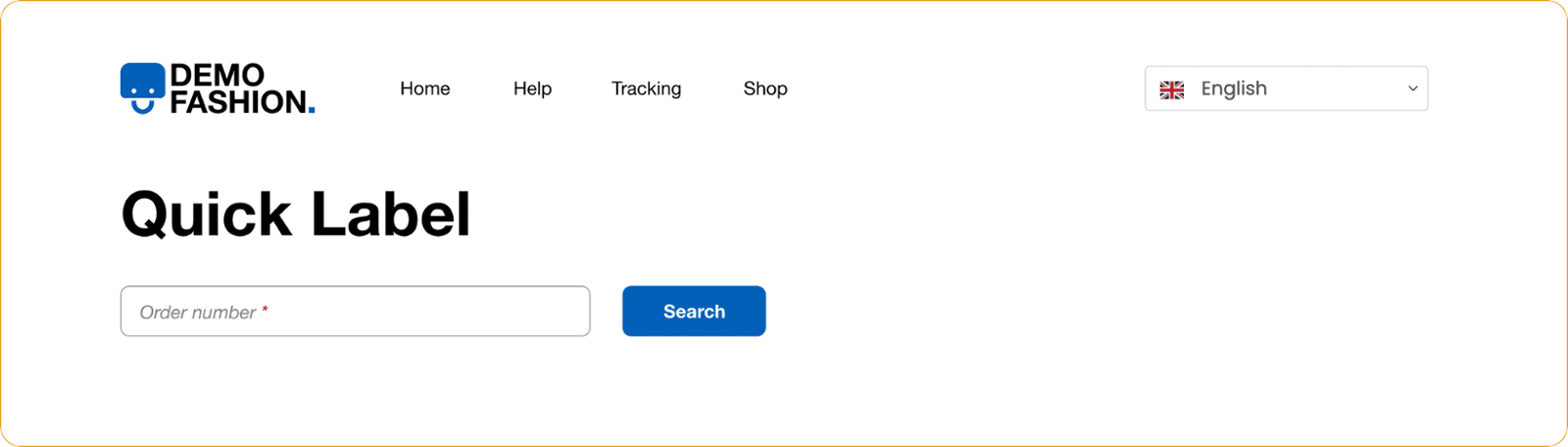
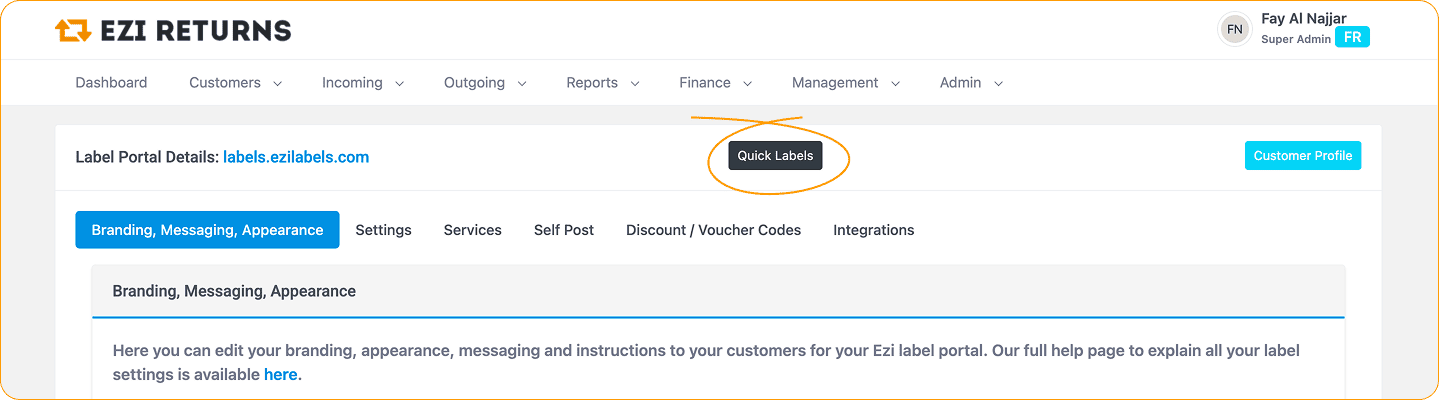
To access this feature, simply add '/quick' to the end of your Label Portal URL to utilise Quick Labels, or click the 'Quick labels' button from within the Ezi portal.
Then all you need to do is enter the Order Number, click Search, select the return reason and action, and get your label in seconds.
This feature is only available to your own team and is password protected. Do not make this URL available to your customers.
How to access Quick Labels
If you are logged into the Ezi Returns management portal, you can access the Quick Label function either using the your label portal URL with yoururl.ezilabels.com/quick added or by selecting the 'Quick Labels' button within your portal settings (no password required if you are already logged in).
Note: your data is only fetched and auto filled if you have an integration with us.
New Feature: Generate Return Labels for Unknown Items
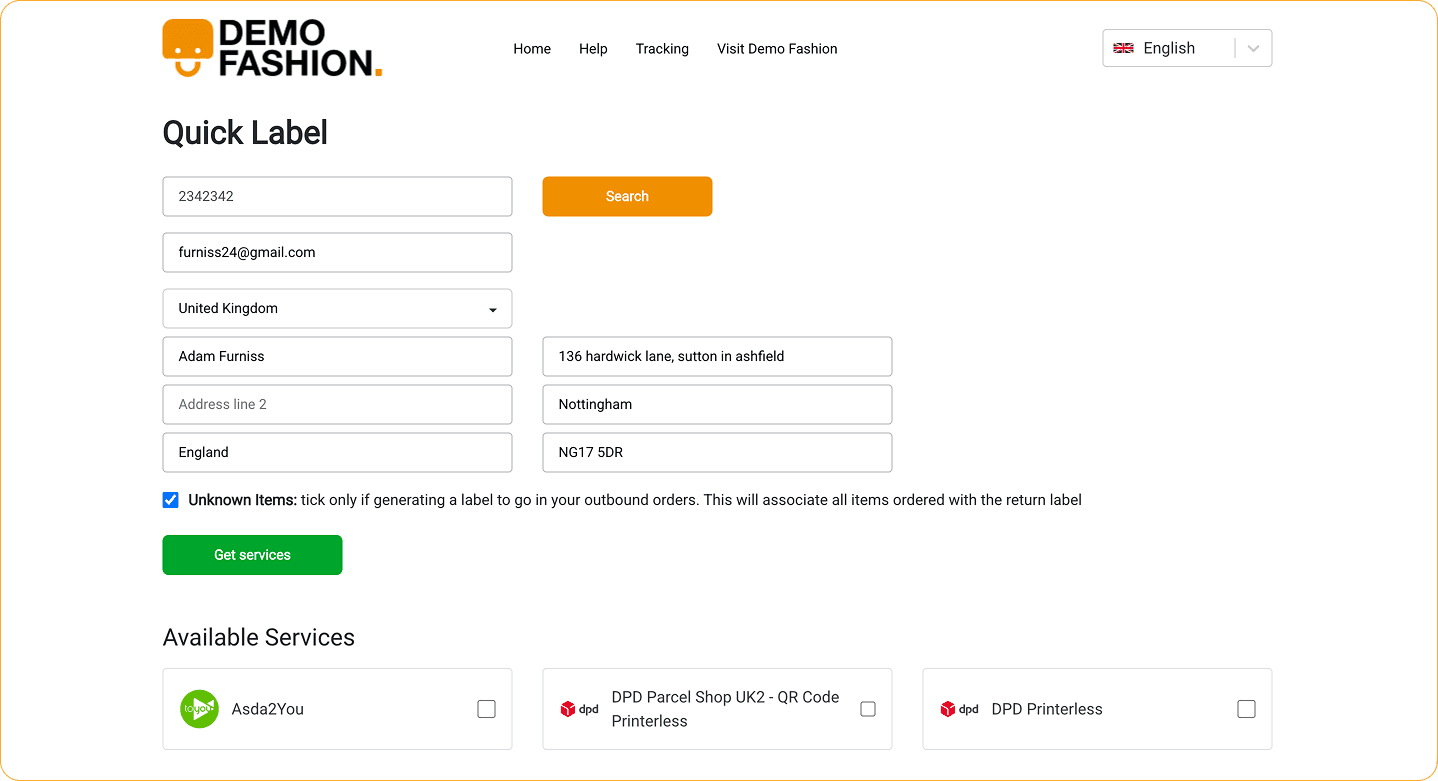
Some marketplaces now require sellers to include a return label inside outgoing packages, even when the customer hasn’t yet confirmed which items may be returned. In these cases, sellers need the ability to generate a return label without specifying exact items or the reasons for return.
To support this, Ezi Returns Label Portal now allows sellers to generate return labels for unknown items when using the Quick Label feature. Simply tick the 'Unknown items' box, and click 'Get Services' to select your label.
This makes it easier to stay compliant with marketplace requirements while still ensuring returns are properly tracked.
Embed the label portal onto your website
Use this code to embed the label portal onto your website:
<iframe src="https://labels.ezilabels.com/?embed=1" width="1000"height="550"></iframe>
You will need to change the URL from labels.ezilabels.com to your portal address (e.g. yourshopname.ezilabels.com).
This will then display the portal on your own website, without the main menu. Be sure to adjust the height and width to best fit your site layout.
